Release managed devices before ownership changes
A successful wipe is not enough. Clear ownership locks, release the enrollment record, and test first boot before handing a managed device to its next owner.
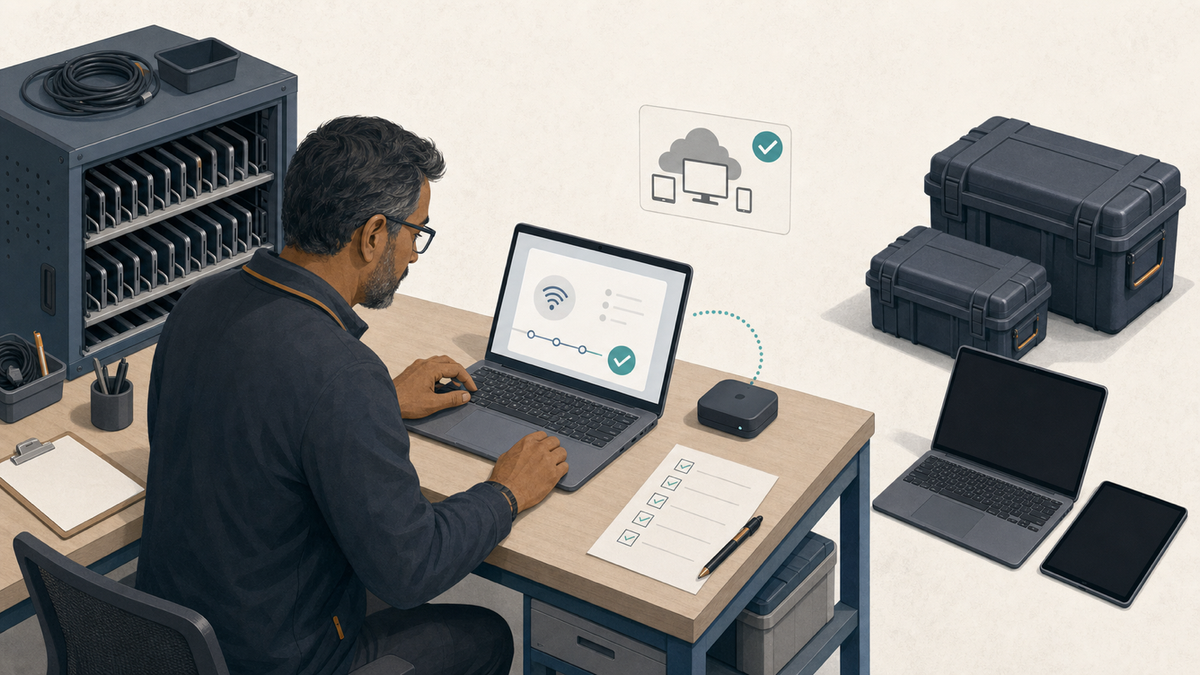
Late July is device-turnover season for a lot of schools and small IT teams. Laptops and tablets are being sold, donated, returned, or offered to employees. The ticket says they were wiped, so the boxes leave the building.
Then the new owner starts one and lands on Remote Management, enterprise enrollment, or an organization-branded Windows setup screen.
The erase may have worked. The organization's enrollment records were never touched.
Before the device leaves the building, run one test: start it on an ordinary internet connection and prove that the next owner can set it up without being pulled back into your management systems.
Decide whether ownership is actually changing
Start with the disposition, not the erase command.
A sale, donation, employee purchase, or permanent transfer ends the organization's ownership. The corresponding records in Apple's, Google's, or Microsoft's enrollment services need to be released, deprovisioned, or deregistered through the supported process.
A repair or RMA is different. The organization may still own the device and may need the replacement to remain eligible for automated enrollment. The platform instructions also differ. Apple specifically says not to release a device being sent to Apple for repair, because a replacement for a released device may not appear in Apple Business. Google says a ChromeOS device must be deprovisioned before it can be fully tested or repaired. For a same-model RMA, choose Same model replacement. Google says the standalone upgrade from a deprovisioned device can then be used to enroll another eligible standalone device; bundled upgrades cannot be transferred. Do not apply one platform's repair rule to another.
Write the disposition on the ticket before anyone removes records. If the technician cannot tell whether the device is leaving permanently or coming back through a service process, the workflow stops there.
Preserve the record before removing it
Once records are deleted from enrollment and management systems, reconstructing the device's history gets harder. Keep the minimum evidence needed:
- Serial number, asset tag, model, and current assigned user or location.
- Destination: reseller, recycler, donation recipient, employee purchase, or other owner.
- Approved disposition and date.
- Current management and enrollment records that need action.
- Activation Lock, account lock, or other ownership-lock status.
- Technician responsible for the final setup check.
- Wipe method and result if your disposal policy requires separate evidence.
Do not use screenshots full of user details if a few structured fields will do. The next owner does not need your directory names, email addresses, or internal device notes.
Clear ownership locks while you still have authority
Apple has the strictest sequencing requirement. Apple says Activation Lock can be managed in Apple School Manager or Apple Business only while the device is still in the organization's account. Those portals can clear both organization-linked and user-linked Activation Lock on organization-owned devices. An external device management service can clear organization-linked Activation Lock directly. For user-linked Activation Lock, it needs a bypass code that it previously retrieved and stored. Do not assume it has one. After release, the Apple portal can no longer clear either type.
For an Apple device that is being transferred permanently:
- Record the serial number and disposition.
- Confirm whether Activation Lock is organization-linked or user-linked. While the device is still in the organization, clear it through the Apple portal, have the user turn it off with their Apple Account, or use a stored MDM bypass code, as appropriate. If none of those paths works, stop the transfer and resolve that first.
- Use Release from Organization in Apple School Manager or the equivalent Apple Business release workflow.
- Verify the portal shows the released state.
- Erase and restore the device, as Apple requires after release.
Removing a device from your MDM console and releasing it from Apple's organization service are not interchangeable steps. Follow the documented offboarding process for the management service as well as Apple's ownership record.
Follow each platform's offboarding order
The names differ by platform, but each one has a service that can recognize a device before the new owner signs in.
For ChromeOS, Google says deprovisioning is the only way to completely remove administrative control from a managed device. Turning off forced re-enrollment is not the same thing. During deprovisioning, the admin chooses whether to factory-reset the device. Connect the Chromebook to the internet and confirm it communicates its status and applies the change before boxing it. A server-side status change that never reaches the device is not a completed handoff.
For Windows devices registered with Autopilot, Microsoft says a device that permanently leaves the organization should be deregistered from Windows Autopilot. The documented sequence removes the enrolled device first and then the Autopilot registration. Microsoft supports registration by an OEM, reseller, distributor, or the organization itself, so identify who registered the device before starting. Microsoft also warns against manually deleting the related Microsoft Entra object as a shortcut because the cleanup behavior depends on the enrollment and join state.
For Apple devices, use the Activation Lock and release sequence in the previous section rather than deleting only the MDM record.
The technician can own the physical device, serial check, erase, and first-boot test. If a reseller controls the Autopilot registration, another group owns Apple School Manager, or the Chrome administrator role sits with a central office, that owner must complete and confirm the control-plane change. A successful wipe is not permission to skip that dependency.
Run the first-boot handoff test
Confirming the portal state is not the same as confirming the device behaves correctly at first boot.
Every device should have a recorded portal-state change, but the depth of first-boot testing can follow the organization's risk and audit requirements. A small K-12 team processing hundreds of standard classroom devices through a repeatable batch may test the first few devices, every exception, and then every 100th device. A healthcare organization, an executive device, or a device that handled regulated or sensitive data may require a documented check on every device. Set the rate in the disposition policy before the batch starts rather than deciding while devices are leaving.
If a sampled device returns to the old management path, stop that batch. Correct the portal or workflow problem and expand testing across the affected group instead of continuing with the original sample rate.
The exact screens differ on an iPad or another non-laptop device, but the result should be the same: setup no longer returns to the old organization.
Connect the erased device to a normal network that does not depend on internal DNS, certificates, proxies, or network access control. A guest network or phone hotspot works if organizational policy allows it. If guest networks and hotspots are prohibited, use an approved test VLAN or other external-like connection that does not rely on organizational DNS, certificates, or network access control. Start setup and go far enough to confirm that:
- No previous user's account or Activation Lock blocks setup.
- No Remote Management screen requires enrollment in the old organization.
- ChromeOS does not force re-enrollment into the old domain.
- Windows setup does not retrieve the old organization's Autopilot profile.
- The device can continue into ordinary new-owner setup without exposing internal organization details.
Stop before creating a personal account or accepting terms on behalf of the next owner. The test only needs to prove that organizational control no longer returns.
Record what appeared at first boot, the network used, the time of the test, and the technician. If the old management path appears, keep the device in the building, reopen the relevant portal step, and involve the owner of that service. This is much easier to fix while you still control the device.
Track disposition as a small state machine
A single retired checkbox hides too much. I would track at least:
- Disposition approved
- Ownership lock cleared
- Enrollment service released
- Device erased or restored
- First-boot handoff passed
- Transferred, with date and destination
Do not advance the device while any required state is unresolved. Exceptions need an owner and next action. A device with unresolved user-linked Activation Lock is not ready. A Chromebook that has not checked in to receive deprovisioning is not ready. An Autopilot record waiting on a reseller is not ready.
This is a useful place for cross-platform endpoint inventory. In FileWave, I would use Administrator-provided Custom Fields for the disposition, portal state, test result, exception owner, and transfer date, then use an Inventory Report to keep the outgoing queue visible. FileWave can coordinate the record and the work; the platform's ownership service still has to perform its release step.
If policy requires wipe evidence or a recycler certificate, attach it to the same record. The first-boot test proves that the old management path is gone; it does not prove how storage was sanitized.
The final record should say which network was used, what appeared at first boot, who signed off, and where the device went. Wipe complete does not answer any of those.
Sources
- Apple: Release devices in Apple School Manager
- Apple: Release devices in Apple Business
- Apple: Turn off Activation Lock in Apple School Manager
- Apple: Turn off Activation Lock in Apple Business
- Apple: Activation Lock on Apple devices
- Google: Buying and selling previously managed ChromeOS devices
- Google: Repair, repurpose, or retire ChromeOS devices
- Microsoft: Windows Autopilot registration overview
- FileWave: Custom Fields
- FileWave: Inventory Reports