Using PSAppDeployToolkit with FileWave for Windows app deployments
PSAppDeployToolkit is useful when a Windows app needs more than a silent install string. FileWave can deploy the package, run it as System, and give you reporting that proves what actually happened.
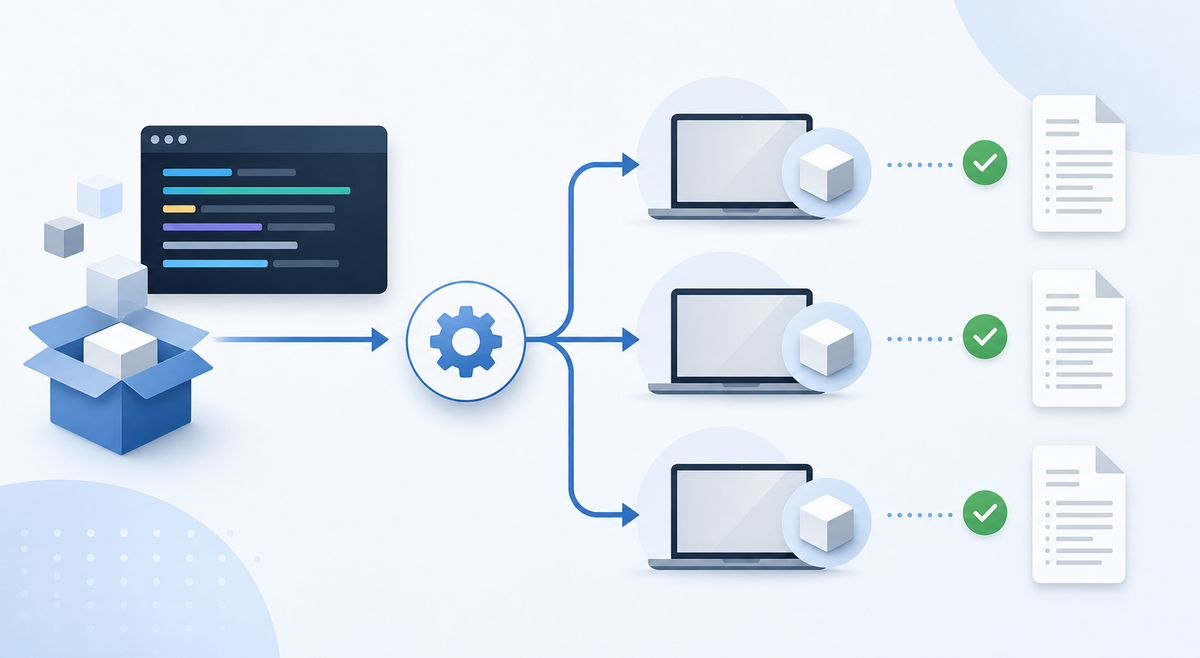
A silent install switch works until the installer gets complicated.
Some apps need the old version removed first. Some need Outlook, Teams, a browser, or the line-of-business app closed before the install finishes cleanly. Some return 3010 for a restart, drop their log in an unexpected location, or fail only when running with no user logged in. At that point setup.exe /quiet stops being enough.
This is where I use PSAppDeployToolkit.
PSAppDeployToolkit is a PowerShell framework for Windows software deployment. It supplies a standard package layout, install and uninstall logic, logging, helper functions, user prompts, restart handling, and a consistent wrapper around the parts of Windows app deployment that do not behave. FileWave still handles assignment, targeting, status, and inventory. The toolkit makes the local install step more predictable.
I do not use it for every small installer. If the vendor MSI installs cleanly, uninstalls cleanly, detects the right version, and logs enough on its own, the Fileset stays simple. I reach for PSAppDeployToolkit when the deployment needs version sequencing, process handling, cleanup steps, custom detection rules, extra logging, or controlled user messaging.
The basic package shape
With PSAppDeployToolkit 4.1.x, the docs list two normal download paths: the PowerShell Gallery module and the GitHub release assets. The GitHub assets include the module-only ZIP plus v3 and v4 deployment templates. For a new build I start with the v4 template unless I already have a working v3 pattern I need to keep.
A typical package layout looks like this:
MyApp-1.2.3
├── Invoke-AppDeployToolkit.exe
├── Invoke-AppDeployToolkit.ps1
├── PSAppDeployToolkit
├── Config
├── Files
│   └── MyAppSetup.msi
└── SupportFiles
Vendor installers go in Files. Helper files, transforms, registry fragments, icons, or supporting scripts go in SupportFiles. Keep the toolkit files together. Do not split pieces across unrelated Filesets unless you have a specific reason; you will need to read the install, uninstall, and logs later.
The PSAppDeployToolkit docs show two launch paths:
%SystemRoot%\System32\WindowsPowerShell\v1.0\PowerShell.exe -ExecutionPolicy Bypass -NoProfile -File Invoke-AppDeployToolkit.ps1or:
Invoke-AppDeployToolkit.exeThe executable runs the PowerShell script in a hidden window. The explicit script path is useful when you need to control parameters. Either way, run it from inside the toolkit folder so Files, SupportFiles, and config paths resolve correctly.
For a FileWave required, non-interactive install I usually start with:
Invoke-AppDeployToolkit.exe -DeploymentType Install -DeployMode SilentIf the installer returns 3010, I would normally let PSAppDeployToolkit finish cleanly and return success to FileWave, then let the Fileset's reboot settings handle the restart. FileWave can mark the payload as restart-needed or force the reboot after activation. I would not have PSAppDeployToolkit reboot the device mid-wrapper; FileWave may still be waiting on the process and report the deployment as if it ended badly.
Where FileWave fits
FileWave owns the rollout: assignment, staging, targeting, dependencies, status, inventory, and remediation. PSAppDeployToolkit owns the local install logic.
The FileWave side needs to answer these questions:
- Which devices should receive this package?
- Which devices already have the required version and should be skipped?
- Which devices installed successfully?
- Which devices need a restart?
- Which devices failed because the installer failed, not because FileWave could not run it?
- Which devices are exceptions that need an owner?
A Kiosk install is user-initiated, but it is not user-context. The user clicking Install changes timing and intent. It does not change who runs the deployment. Scheduled associations, manual associations, and Kiosk installs still need to be written as SYSTEM-run deployments on Windows.
That works for most machine-wide installers and is often preferable. SYSTEM has the rights needed for services, Program Files, HKLM, machine-wide MSI installs, and cleanup of old versions. The trouble starts when the installer is per-user, writes to HKCU, expects %AppData%, depends on mapped drives, looks for user certificates, or needs to launch something on the user's desktop.
For those cases, be explicit. Either keep the core install as SYSTEM and handle user-profile work separately, or use PSAppDeployToolkit's user-session functions such as Start-ADTProcessAsUser for the specific piece that must run as the logged-in user. Do not write settings into SYSTEM's profile and call that a successful user install.
I usually split the work into clear pieces.
Use a requirements script when you can cheaply check compliance. FileWave script exit codes help here: 0 continues, 210 means the requirement succeeded and the Fileset should be skipped, 220 means the requirement failed and FileWave should stop retrying. This avoids unnecessary reinstalls while keeping the skipped state visible in inventory.
Use PSAppDeployToolkit for the install and uninstall logic. That is where you handle previous versions, process closes, installer arguments, logs, return codes, and cleanup.
Use inventory and Custom Fields for proof. A Custom Field should return one useful value: installed version, install status, last successful deployment date, or a short compliance state. Do not push the full PSAppDeployToolkit log into inventory. Keep the full log on disk and report the value an admin can filter on.
One small bitness note: current FileWave Windows clients are 64-bit, and Custom Fields can run 64-bit with On Windows, run as 64-bit. Older fields may stay 32-bit for compatibility. Only reach for Sysnative or PSAppDeployToolkit's /32 option when you intentionally need that older 32-bit context.
Be careful with user prompts
PSAppDeployToolkit includes welcome prompts, close-app prompts, deferrals, progress dialogs, restart prompts, and custom messages. These are useful when users need time to save work before a required install closes an application.
They can also make the deployment harder to troubleshoot.
When I roll this out through FileWave I start silent for the first pilot group unless user interaction is required. Then I test the cases that usually break:
- no user logged in
- locked screen
- standard user logged in
- admin user logged in
- app open with unsaved work
- device on VPN or off-network
- device that needs a restart
- Kiosk install started by the user
- association activated at a scheduled date and time
The PSAppDeployToolkit 4.1.x docs note improved UI behavior for SYSTEM-context deployments in some platforms. I still test the exact FileWave path on my devices. For a Kiosk workflow, an interactive prompt or deferral may make sense because the user started the install. For a scheduled association, I usually prefer -DeployMode Silent or -DeployMode NonInteractive unless the package has been tested to handle unattended timing cleanly. If the prompt does not behave correctly on the devices you manage, the docs will not fix it.
Logging and troubleshooting
PSAppDeployToolkit writes its own logs. The default location is C:\Windows\Logs\Software unless you change it in config.psd1. FileWave Scripts also capture output automatically.
Use both logs and do not mix them up.
FileWave tells you whether the script launched, what exit code it returned, and whether the Fileset reached the expected state. PSAppDeployToolkit tells you what happened inside the wrapper: prerequisites, process checks, MSI execution, uninstall detection, restart handling, and any custom logic.
Before broad rollout I want three things:
- Pilot results that cover install, uninstall, repair if used, and reinstall behavior.
- A Custom Field or inventory check that confirms the target app version after install.
- A short troubleshooting note for support: where the FileWave script log lives, where the PSAppDeployToolkit log lives, and what the exit codes mean for this package.
The note is not exciting, but it saves time when the next person has to debug a failed install three months later.
A sane first pass
If I were building a new Windows app deployment with FileWave and PSAppDeployToolkit, the first pass would look like this:
- Download the current PSAppDeployToolkit release assets from GitHub or install the module from the PowerShell Gallery.
- Start with the v4 deployment template.
- Put the vendor installer in
Filesand supporting material inSupportFiles. - Write install and uninstall logic in
Invoke-AppDeployToolkit.ps1. - Test locally from an elevated 64-bit PowerShell session.
- Build a FileWave Fileset that runs the toolkit from its package folder.
- Add a requirements script only if it gives you a clean skip condition.
- Add a small inventory or Custom Field check for the installed version or compliance state.
- Pilot on a few real devices before expanding the assignment.
- Keep the logs and troubleshooting path obvious.
- Treat Kiosk and scheduled associations as different launch paths, but the same Windows execution identity: SYSTEM.
FileWave gives you the fleet workflow. PSAppDeployToolkit gives you a disciplined Windows installer wrapper. Used together they make the deployment easier to test, easier to explain, and easier to prove with real status and inventory data.
Sources
- PSAppDeployToolkit download documentation
- PSAppDeployToolkit deployment parameters
- PSAppDeployToolkit customization and logging
- PSAppDeployToolkit UI elements
- PSAppDeployToolkit Start-ADTProcessAsUser
- FileWave Script Best Practices
- FileWave Force a Reboot After Installing a Fileset
- FileWave Fileset / Payload Script Exit Code Status
- FileWave Running Built-in PowerShell Commands with Custom Fields