Using Lynis to audit Linux laptops
If you manage Linux laptops, Lynis gives you a practical local check: what OS is this running, what basic hardening gaps keep showing up, and which findings need an owner.
If you manage Linux laptops, you probably do not need another reminder that Linux can be hardened. You need a way to look at the actual laptops you support and answer basic questions.
Is this machine on a supported release? Does it have obvious hardening gaps? Are the same warnings showing up on multiple devices? If something is allowed because it is a developer laptop, lab computer, kiosk, or test box, did someone make that decision on purpose?
That is where Lynis is useful. It gives you a repeatable way to scan a Linux machine and turn a vague feeling into a list you can review.
Lynis is an open source, GPL security auditing tool for Linux, macOS, and other Unix-like systems. It runs locally on the device you are checking. The GitHub project describes it as agentless and installation-optional.
For an admin, the useful part is what it looks for and what it leaves behind. Lynis checks the host, figures out what operating system and components are present, and runs security tests against what it finds. CISOfy describes the scan as modular and opportunistic, which is a fancy way of saying the audit changes based on the machine. A developer laptop, a lab machine, and a small server may not produce the same results.
The output is not just a pass/fail screen. Lynis writes technical scan details to lynis.log and findings such as warnings and suggestions to lynis-report.dat. That gives you something you can come back to after the scan: which systems were checked, which warnings repeated, which suggestions matter, and which ones your team is going to ignore or accept for a specific role.
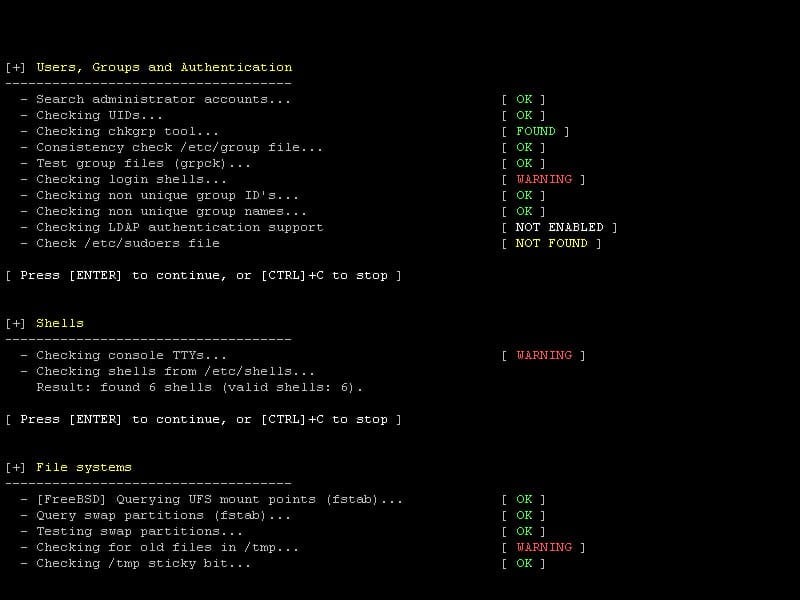
Example Lynis output from the CISOfy Lynis site, showing checks grouped by area with statuses such as OK and WARNING.
I would not treat Lynis as a compliance stamp. Scanner output is not policy. Lynis does not know why a laptop exists, who owns the exception, or whether a finding is acceptable for a lab cart, developer machine, shared kiosk, or one-off test device.
But as a first pass, it gives you something useful: a repeatable local audit that can become a managed signal.
The reason I am looking at it now is that Lynis 3.1.7 shipped on June 25. The release itself is small: CachyOS detection and updated end-of-life database entries. Small is fine. If you are using a tool to check real devices over time, platform detection and end-of-life data are exactly the kind of maintenance you want to keep current.
Who should care
This is for the admin who owns Linux laptops, or is about to.
Maybe those are developer machines. Maybe they are student laptops, lab machines, field devices, or a small group of power-user endpoints that never fit neatly into the Windows and macOS process. Either way, someone eventually asks the same questions:
- Which devices are current?
- Which ones have not been checked recently?
- Which warnings show up across multiple machines?
- Which findings have owners?
- What do we fix, accept, document, or ignore for now?
If you cannot answer those questions, Lynis can help you start building the answer.
What it gives you
The basic command is straightforward:
sudo lynis audit system
Start small. Pick a few representative machines, run the scan, and look at what repeats before deciding what belongs in your normal reporting.
The raw report is only the starting point. The useful work is turning it into a short set of fields an admin can filter:
- Lynis version and scan date.
- Distribution and release.
- Whether the OS is current or unsupported.
- A count of warnings or suggestions.
- The specific findings your team has decided to track.
- Exception owner and next action.
Without an owner, a finding is just noise with a timestamp.
How I would use it
For Linux laptops, I would start with triage, not perfection.
Pick five or ten representative machines. Include more than one Linux distribution if your fleet has them. Ubuntu LTS and Fedora will tell different stories. A developer laptop and a shared student machine will also tell different stories.
Run Lynis on that pilot group and look for patterns you can act on. If every developer workstation shows the same warning, that may be a baseline decision. If three machines are missing the same control, that is remediation. If one laptop is on an unsupported release, that is ownership and lifecycle work.
The Lynis documentation lists audit system as the common command. It also documents --quick, which runs without waiting for user input except on errors, and --cronjob, which includes the check and quick options.
For a pilot, I would test something close to this on a non-production group:
sudo lynis audit system --quick
For a scheduled run, I would test the cron-style behavior separately:
sudo lynis audit system --cronjob --quiet
The docs say Lynis stores technical details in lynis.log and findings in lynis-report.dat, with the report file stored by default at /var/log/lynis-report.dat. That is enough to build a small parser for the few fields you actually want to manage.
Do not start by collecting everything forever. Decide what deserves to become a managed signal.
The FileWave-shaped part
This is where FileWave can help, but only if you keep the job clear.
Lynis is the local audit helper. FileWave can be the place where fleet data becomes visible: deploy the helper, run it on a schedule, collect the small result you care about, report on it, and target follow-up work.
FileWave's KB says Custom Fields can use a client script whose output becomes the Custom Field value, and those values can be used in Inventory Reports, Smart Groups, and API calls. The current public Custom Fields article lists client-script support for macOS and Windows, so for Linux I would treat this as the pattern to validate as Linux client support lands, not as a promise about a feature that is already public.
If Lynis is installed on the endpoint, I would not start by collecting the whole report. I would start with two small Custom Fields.
One field can answer whether the device has a recent Lynis report:
#!/bin/sh
report="/var/log/lynis-report.dat"
[ -r "$report" ] || { echo "missing"; exit 0; }
mtime=$(stat -c %Y "$report" 2>/dev/null || stat -f %m "$report" 2>/dev/null)
[ -n "$mtime" ] || { echo "unknown"; exit 0; }
age=$(( ($(date +%s) - mtime) / 86400 ))
[ "$age" -le 14 ] && echo "fresh:${age}d" || echo "stale:${age}d"
Another field can return a short summary from the Lynis report file:
#!/bin/sh
report="/var/log/lynis-report.dat"
[ -r "$report" ] || { echo "no-report"; exit 0; }
score=$(awk -F= '$1=="hardening_index"{print $2; exit}' "$report")
warnings=$(grep -c '^warning\[\]=' "$report" 2>/dev/null)
suggestions=$(grep -c '^suggestion\[\]=' "$report" 2>/dev/null)
echo "score=${score:-unknown} warnings=$warnings suggestions=$suggestions"
Those outputs are intentionally boring: fresh:2d, stale:21d, or score=74 warnings=3 suggestions=41. That is the point. They are small enough to report on, filter, and turn into Smart Groups.
A report might show Linux laptops with stale scan dates, unsupported OS releases, or repeated high-priority findings. A Smart Group might target machines that need a package, a configuration change, an owner review, or a human decision.
FileWave Linux support is coming this year. I would not wait until launch day to decide what Linux audit signal is worth collecting. You do not need to build the entire compliance program now. Start with the local checks that would help you manage real laptops.
What not to do
Do not turn the first scan into an automatic remediation spree.
Lynis surfaces possible work. Your team still has to decide what each finding means in your environment. Some findings are real. Some are low priority. Some are role-specific. Some are accepted risk. Some need a better baseline before anyone touches production devices.
Also be careful with logs. A local audit can reveal system details you may not want sprayed into a chat channel, ticket comment, or shared folder. Collect the small parsed result first. Keep full logs where they belong.
The best version of this workflow is modest: run the tool, collect the few fields worth managing, assign owners, and repeat it often enough that stale machines stand out.
That is how Linux laptops become normal endpoints. You end up with a scan date, a release, findings, owners, and a next action.