Preparing school devices for secure testing
The 2026-27 requirements are out. Here is the device, room, network, accommodation, and fallback workflow I would run before test day.
College Board has published its Bluebook requirements for the 2026-27 school year. The minimums are now ChromeOS 144, macOS 15, iPadOS 26, and Windows 11 24H2. Chromebooks also need verified mode enabled.
Those are the first filters I put in a report. I do not mark the testing fleet ready based on OS versions alone.
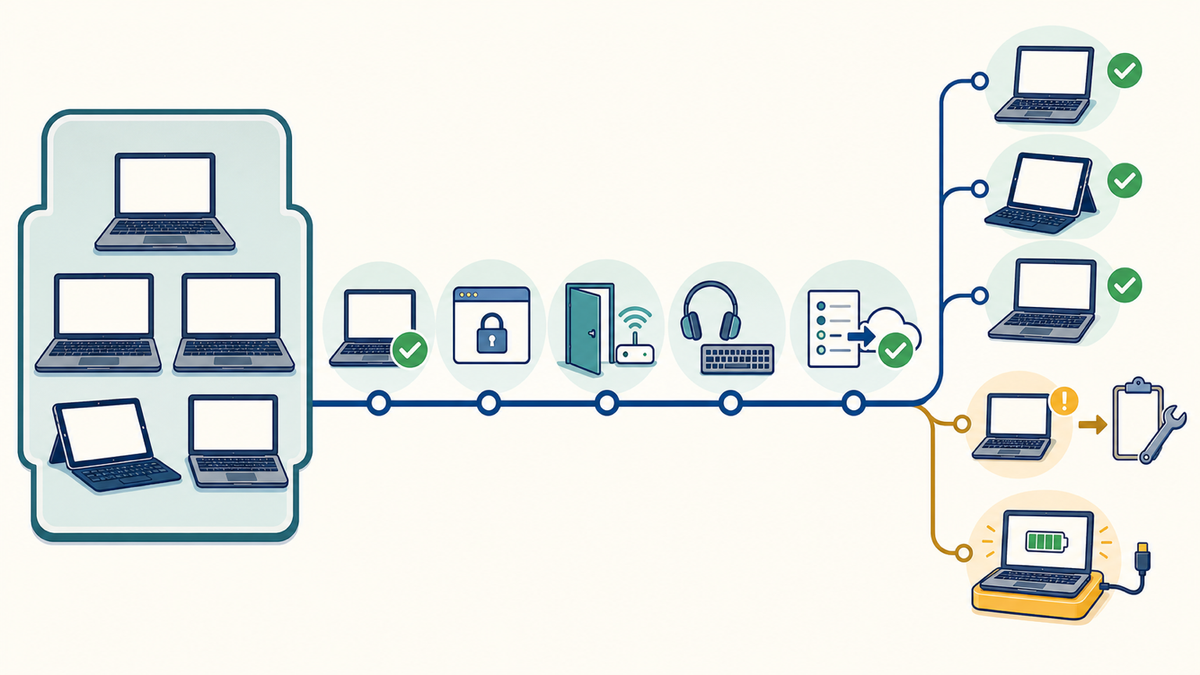
I need to know whether a student can sit down in the assigned room, use the assigned device, sign in, open the correct test, use any approved accommodation, finish, submit, and move to a spare if something fails. You only get that answer by rehearsing the workflow.
Start with the assessment and the student
A label such as "testing device" is too broad. The same laptop can pass for one assessment and fail for another.
College Board's device requirements allow Bluebook on Windows, Mac, iPad, and school-managed Chromebooks, with different rules for OS versions, storage, keyboards, device ownership, and kiosk behavior. ChromeOS Flex, virtual machines, and thin clients are prohibited.
TestNav's 2026-27 requirements cover a different mix. TestNav lists Windows, macOS, ChromeOS, iPadOS, Fedora 44, and Ubuntu 24 LTS and 26 LTS with GNOME, but some capabilities vary by platform. Audio recorder interactions require the TestNav app on Windows, Mac, iPadOS, or ChromeOS. Remote testing, dynamic text to speech, Audio Recorder, Read&Write, and Co:Writer are not supported on Linux.
Even when two programs use the same delivery engine, their rules can differ. For the ACT Test and PreACT Secure taken online, ACT's requirements page says browser-based testing is unsupported, requires school-owned and managed devices, and does not support Linux.
I keep a readiness record for each assessment and testing group:
- Name the assessment and testing window so the result does not get reused for the wrong program or semester.
- Record the device model, OS version, testing-app version, management scope, and room.
- Note whether the device is assigned, shared, or reserved for a student who uses assistive technology.
- Record the rehearsal date and result, including the sign-in, test preview, accommodation, submission, and spare-device checks.
- Give every exception a next action and an owner.
This record stays small. It needs enough detail to stop a passing Windows laptop in one room from becoming evidence for every Windows device in the district.
Build a bounded testing pool
Start with the devices you intend to put in rooms. Total managed-device count is not useful here.
I use four states because they answer different questions about the same device:
- Eligible means the hardware, OS, app, storage, and ownership rules match the assessment.
- Rehearsed means the device completed the assessment's approved readiness workflow under representative conditions. If you validate by configuration cohort, record the sampled devices and keep physical checks at the individual-device level.
- Exception means the device or room failed a check and has a named fix, retest date, or approved accommodation path.
- Spare means the device is charged, current, and prepared for the same assessment and student needs as the device it may replace.
A generic loaner with the wrong app policy or no accessibility setup is inventory, not a fallback. The spare gets its own check.
Check the physical details while you have the devices in hand. College Board requires four hours of battery life for AP Exams and three hours for SAT Suite assessments, and it specifies minimum free storage. Smarter Balanced's universal requirements include screen size, resolution, a physical keyboard, a pointing device, headphones for some students, network capacity, secure mode, and an operating system supported by the member's test delivery provider.
Inventory can narrow the pool. Someone still needs to inspect batteries, chargers, damaged keyboards, headphones, and the actual room setup.
Rehearse the real sign-in and test flow
For SAT School Day and PSAT assessments, College Board's student readiness check is the right model. Students sign in as they will on test day, complete exam setup, and use a test preview. Using the same rooms and a similar number of students also tests room capacity.
That catches failures a device report cannot see:
- The app was assigned but did not install in the student or device scope that will be used.
- Kiosk or secure mode launches, but the student cannot authenticate.
- An approved accommodation or assistive tool does not work in the secure session.
- The room uses a different wireless access point, proxy path, or content-filter rule than the IT test bench.
- A shared device has stale local data, insufficient storage, or the wrong keyboard and audio setup.
- A program-approved submission, recovery, or spare-device exercise fails, when the assessment provides one.
Run the rehearsal with representative students or approved test accounts. Include at least one device from every relevant hardware class, policy scope, room type, and accommodation path. If one organizational unit has different restrictions, test a device from that unit.
Repeat the affected checks after an OS upgrade, testing-app update, kiosk-policy change, network-filter change, or accommodation change. A result from last semester is a historical record, not current proof.
Check policy inheritance on the device
The new Bluebook Chromebook requirement is a useful example of why assignment does not prove effective state.
College Board's verified-mode instructions require both an enterprise challenge setting for the Bluebook kiosk app and verified-mode boot for verified access. The instructions also tell admins to run Test Your Device on lower organizational units. A device used for an accommodation may sit in one of those lower units and inherit different settings.
Do the equivalent check on every platform in your pool. Open the app on devices from the actual management scopes. Confirm the kiosk or secure-testing policy took effect. Check the installed version and required permissions. Keep a screenshot or result record if the testing system provides one.
One passing device from the top-level group does not clear a cart assigned through another scope.
Use the rooms and network you will use on test day
College Board's network-readiness guidance tells schools to provide internet access, test speed, check device capacity in each room, and allow required traffic through security appliances and software.
I run the readiness session in the real rooms while enough devices are active to expose capacity and filtering problems. Test staff access too. The student app can work while the coordinator or proctor workflow fails on a different network or account.
Keep the result by room or network segment. If a room fails, record whether the issue was capacity, wireless coverage, DNS, proxying, TLS inspection, filtering, authentication, or a required service. Then retest the room after the change.
Do not let one clean speed test from the IT office stand in for every testing room.
Split the ownership before test day
IT owns the managed-device work: inventory, OS and app versions, deployment, kiosk policy, network configuration, assistive-technology setup, spares, and technical evidence.
The testing coordinator owns the administration details: the assessment window, roster, rooms, student tickets, approved accommodations, staff access, schedule, irregularity process, and answer-submission confirmation. College Board's technical readiness checklist explicitly tells test staff to work with the people who manage the network and devices.
A small school may have one person doing both jobs. Write down both sets of tasks anyway. Otherwise, each side can finish its checklist while the handoff between them remains untested.
Where FileWave helps
For a mixed fleet, I would use FileWave to narrow and maintain the device pool before the student rehearsal. An Inventory Report can filter and save the hardware, OS, application, building, and other device data you need, then support a Smart Group or scheduled report.
A practical report could include asset ID, platform, model, OS version, test-app version, building or room, last check-in, and assigned testing group. Use that report to find devices that are eligible for the next rehearsal and to remove devices that drift after an OS or app change.
Where FileWave manages the app, use it to deploy to the intended scope and report which devices meet the technical criteria. It cannot prove that a student signed in, an accommodation worked, the room handled the load, or the answers were submitted. Keep those rehearsal results with the testing coordinator's readiness record and link the exception back to the device.
I start with one assessment, one real room, and a representative group of devices. Run the full student workflow, fix the failures, retest, and only then expand the ready pool. By test week, your remaining open items should be named exceptions with tested spares ready. Whether the app opens should have been settled weeks earlier.
Sources
- College Board: New Bluebook technical requirements for 2026-27
- College Board: Device requirements overview
- College Board: Technical prep for the student readiness check
- College Board: Network readiness
- College Board: Enabling Chromebook verified mode
- College Board: Technical readiness checklist
- Pearson: TestNav system requirements for 2026-27
- ACT: Online testing requirements
- Smarter Balanced: Student device and secure browser requirements
- FileWave: Inventory Reports