Managing Linux laptop firmware with fwupd
fwupd gives Linux admins a standard way to find and install firmware updates, but a useful fleet process still needs model coverage, reboot handling, recovery, and proof that each update finished.
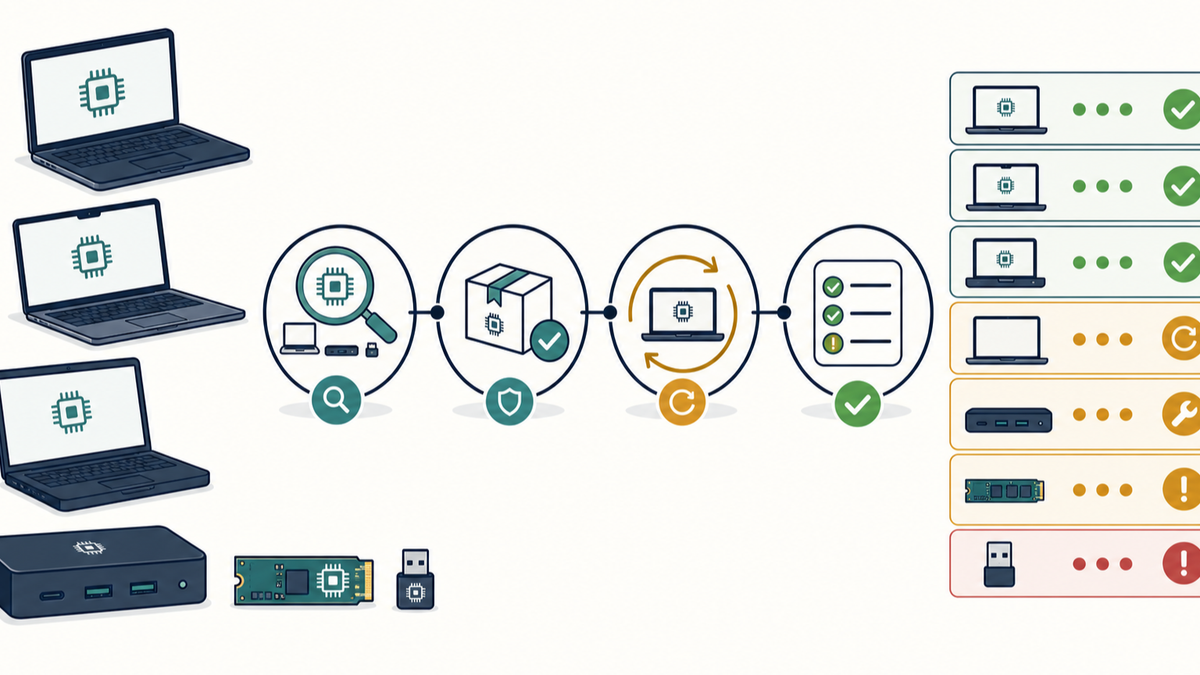
I've seen plenty of Linux laptops with current OS packages and old firmware. The package report shows green, but the BIOS, SSD, dock, or USB receiver sits on its own update path.
fwupd is the tool that handles most of this on Linux. It detects supported hardware, reads firmware versions, matches devices against vendor metadata from the Linux Vendor Firmware Service (LVFS), installs updates, and records the outcome.
The project shipped fwupd 2.1.6 on July 1 with more parser hardening, a Coreboot verified-boot check, offline DBX hashes, reset handling, refresh fixes, and support for another Lenovo accessory path. A 2.0.21 release also landed for conservative distributions. It backports fixes for more than 250 potential security issues flagged by AI security scanners plus a correction to reboot-needed reporting.
Updating the fwupd package is necessary. It does not tell you which hardware has a supported update available, whether a reboot or separate activation completed the installation, or whether the update succeeded.
What fwupd gives you
The local service is fwupd. The fwupdmgr command is its administrative client. On most systems, fwupd uses LVFS for signed metadata and firmware supplied by hardware vendors.
According to the LVFS architecture documentation, fwupd identifies hardware by device IDs and GUIDs, then matches those values against vendor metadata. Vendor participation matters. So do the hardware revision, update protocol, and the version of fwupd on the laptop.
The fwupdmgr command reference lists the operations I use for fleet work:
get-devicesshows what fwupd detected and the firmware version it can read.get-remotesshows which metadata sources are configured and enabled.refreshdownloads current metadata from those configured remotes.get-updatesshows newer releases currently offered for detected devices.activatehandles devices that separate installation from activation.get-historyshows prior update attempts stored by fwupd.get-resultsshows the last update result for a device.check-reboot-neededchecks whether an update is waiting for a reboot.
Add --json when a management script needs to parse the output. The project warns that the normal terminal format can change between fwupd versions.
Do not turn “no update” into “current”
fwupdmgr get-updates can return no available action. That result can mean the device is current on an enabled remote. It can also mean the device was not detected, the remote is disabled or stale, the exact hardware revision has no matching metadata, the vendor distributes a newer release somewhere else, or the installed fwupd version cannot use the release.
I keep these states separate:
fwupd missingremote unavailable or disableddevice not detecteddevice detected, no LVFS update offeredupdate availableupdate staged, activation requiredupdate staged, reboot requiredupdate succeededupdate failedmanual or vendor-only update path
Keep no update offered in the report instead of quietly marking the device current. Current needs a known update source and a version comparison.
Here is a small first-pass check. It deliberately reports a cautious state instead of claiming the laptop is current:
#!/bin/sh

if ! command -v fwupdmgr >/dev/null 2>&1; then
    printf '%s\n' 'fwupd_missing'
    exit 0
fi

if ! command -v jq >/dev/null 2>&1; then
    printf '%s\n' 'jq_missing'
    exit 0
fi

devices_json=$(fwupdmgr get-devices --json 2>/dev/null) || {
    printf '%s\n' 'device_check_failed'
    exit 0
}

if ! printf '%s' "$devices_json" | jq -e '.Devices | length > 0' >/dev/null; then
    printf '%s\n' 'device_not_detected'
    exit 0
fi

remotes_json=$(fwupdmgr get-remotes --json 2>/dev/null) || {
    printf '%s\n' 'remote_check_failed'
    exit 0
}

if ! printf '%s' "$remotes_json" | jq -e '.Remotes | any(.Enabled == true)' >/dev/null; then
    printf '%s\n' 'remote_unavailable_or_disabled'
    exit 0
fi

# Avoid prompting to enable LVFS on systems that use managed or offline remotes.
fwupdmgr --no-remote-check refresh >/dev/null 2>&1
refresh_rc=$?

case "$refresh_rc" in
    0|2) ;;
    *)
        printf '%s\n' 'metadata_refresh_failed'
        exit 0
        ;;
esac

# Avoid the interactive offer to upload unreported update history.
fwupdmgr --no-remote-check --no-unreported-check get-updates >/dev/null 2>&1
rc=$?

case "$rc" in
    0) printf '%s\n' 'update_available' ;;
    2) printf '%s\n' 'no_update_offered' ;;
    *) printf 'check_failed_%s\n' "$rc" ;;
esac
This check refreshes metadata first and uses the JSON from get-devices and get-remotes to avoid turning an empty result into a success. The documented exit codes then separate an offered update from a command that completed with no available action. It covers pre-installation state only. Staged, activation, reboot, and final-result states need a separate collection after the update. I still retain the full device, remote, and history JSON when investigating an exception.
Test each hardware model
Build the pilot from the physical models in use. I take one or two laptops from every model and important hardware revision, then include the docks and attached devices people actually rely on.
For each model:
- Record the distribution and fwupd version so you know which updater branch produced the result.
- Save detected device names, GUIDs, and current firmware versions so the test can be repeated against the same hardware.
- Check enabled remotes and metadata age before treating an empty update list as meaningful.
- Record the offered release, update protocol, and installation requirements before approving it for a model.
- Note whether AC power, a minimum battery level, reboot, shutdown, cable disconnect, device replug, or separate activation is required.
- Write down the recovery path before installing anything that can affect boot or attached hardware.
UEFI capsule updates are often staged to the EFI System Partition and applied during reboot before the bootloader starts. Many USB, Thunderbolt, and other peripheral updates can run without a reboot. The LVFS architecture guide documents that difference, and it changes how I schedule and verify the work.
Power and boot state matter too. The LVFS telemetry documentation uses missing AC power and a missing /boot/efi partition as examples of real update failures. An update job should check those conditions before it starts, not discover them after a user has been told the laptop is done.
Keep the result after the reboot
Installing firmware is one step. After the laptop returns, collect fresh get-devices output, the new firmware version, get-results, get-history, and check-reboot-needed. The new device output also shows whether a component still needs activation.
Retain at least:
- Save the device model and firmware component so failures can be grouped by exact hardware.
- Keep the previous and new versions so the result can be checked against vendor release notes.
- Record the fwupd version and update source that produced the result.
- Keep the install start time, final result, and any reboot or activation requirement.
- Preserve the failure text with the next action rather than replacing it with a generic red status.
- Assign a person or team to any exception that stays open.
fwupd can optionally send update history to LVFS. That helps vendors see broad success and failure patterns, but it is not your organization's compliance record. The LVFS firmware-testing documentation notes that ordinary reports can be modified before submission and should not be treated as trusted evidence. Keep your own result in the system where you manage the fleet.
Decide how much to automate
For a small fleet with a few well-tested models, a scheduled metadata refresh and a controlled update window may be enough. Larger or more varied fleets may need an approved-firmware list, a private mirror, or a manual path for hardware that is not covered by LVFS. The LVFS offline-firmware guide documents those options.
I automate discovery before installation. Once the model coverage and recovery path are known, move a small pilot group through the complete update and reboot. Expand by model, not by a random percentage of the entire Linux fleet.
fwupd does not replace endpoint management. Your management system still has to schedule the check, decide which devices are eligible, retain the result, and route failures. FileWave's current Custom Fields documentation describes client-script fields for macOS and Windows, so I would not pretend this Linux script is a shipping FileWave workflow today. The status categories above are still the shape I would want in any mixed-fleet report: offered, staged, reboot pending, succeeded, failed, unsupported, or manual.
Start by finding which devices actually have a supported firmware path, then prove the update finished on each model you plan to automate.