Before replacing Windows 10 hardware, test ChromeOS Flex for browser-first roles
Windows 10 support ended on October 14, 2025. Some devices need replacement, but some may be candidates for ChromeOS Flex if the workload fits and the management plan is honest.
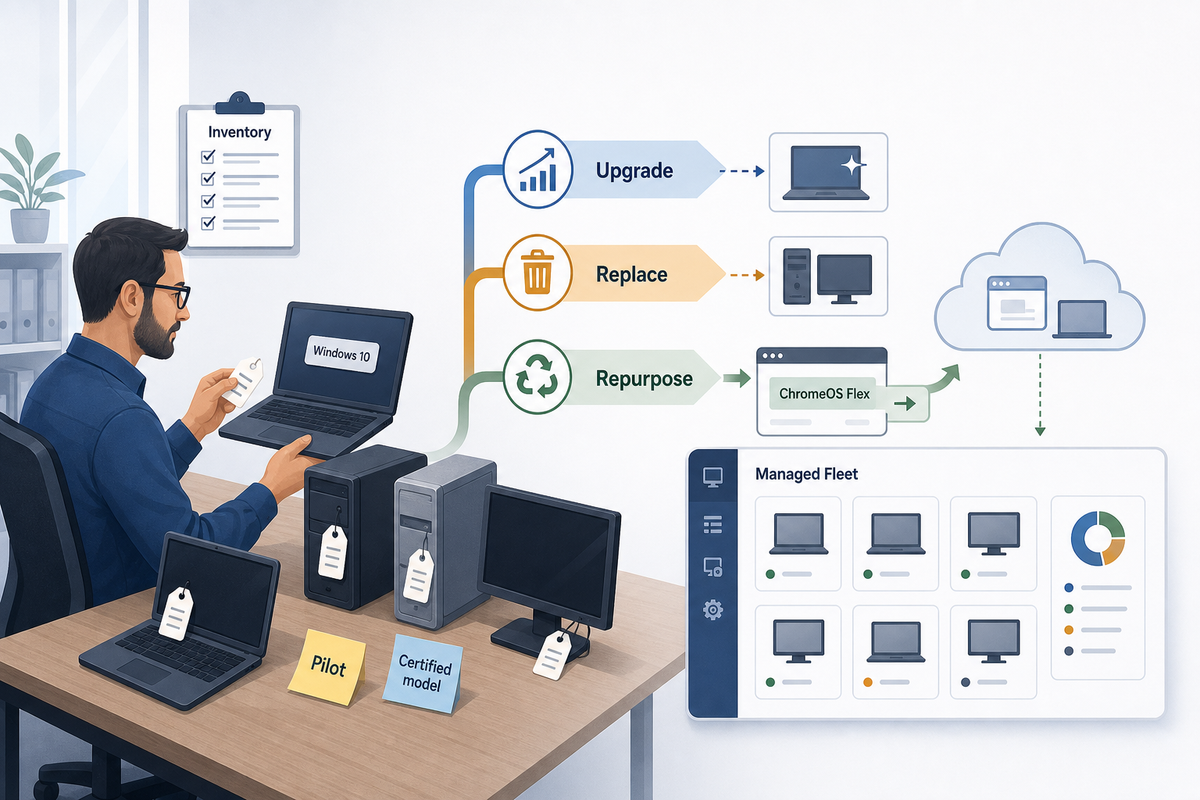
Google sent me a timely pitch about ChromeOS Flex and Windows 10 hardware. The pitch was useful, but incomplete from an admin planning perspective.
The admin version needs workload triage, certified-model checks, and an honest management plan.
Microsoft says Windows 10 support ended on October 14, 2025. Those PCs still boot, but Microsoft no longer provides software updates, security fixes, or technical assistance unless the device is covered by an Extended Security Updates path. That means every remaining Windows 10 device needs a decision.
Some should move to Windows 11. Some should be covered temporarily by ESU while you finish the migration. Some should be replaced.
And some may not need to be Windows devices anymore.
That last group is where ChromeOS Flex is worth a serious look.
First, ask what job the device still has
The worst version of this project is treating ChromeOS Flex as a shortcut around planning a hardware refresh. That will disappoint everyone.
A better approach is to look at the devices still running Windows 10 and sort them by job:
- A device that runs a local Windows-only application probably needs Windows 11, ESU, a replacement plan, or a remote app/VDI strategy.
- A device tied to specialty peripherals needs testing before anyone promises anything.
- A shared front-desk machine that mostly runs browser apps may be a good ChromeOS Flex candidate.
- A training lab, library station, loaner machine, kiosk, student access device, or web-only workstation may also fit.
The hardware may still be viable as a browser-first endpoint after model and workload testing, even if it is no longer a good Windows endpoint.
Where ChromeOS Flex fits
Google positions ChromeOS Flex as a way to install a modern, cloud-first operating system on existing PCs and Macs. The strongest use cases are the boring ones, which is usually a good sign for IT:
- users who mostly live in Google Workspace, Microsoft 365 web apps, SaaS tools, or browser-based line-of-business apps
- shared devices where policy, sign-in, and simple recovery matter more than local customization
- classrooms, labs, libraries, kiosks, temporary workstations, and loaner pools
- older hardware that is unsupported for Windows 11, or too constrained for a good Windows 11 experience but still has enough life for web work
Google also notes that ChromeOS Flex can be managed through the Google Admin console when devices are enrolled and covered by the appropriate ChromeOS Enterprise, Education, or kiosk/signage licensing. Google's ChromeOS management documentation describes the Admin console as the place to enforce policies, configure Wi-Fi and VPN settings, install apps and extensions, and manage kiosk or guest-session use cases.
Plan the rollout as a management change, not a simple OS install. The device is moving into a different control plane with different policies, licensing, update behavior, and reporting.
The caveat in the security pitch
The security story is good, but it needs to be stated accurately.
ChromeOS Flex and ChromeOS share underlying technology and management tools, but Google's own comparison page calls out important differences. Dedicated ChromeOS devices include Google security hardware that supports the standard ChromeOS verified boot process. ChromeOS Flex devices do not have that Google security chip, so the ChromeOS verified boot procedure is not available on them.
For ChromeOS Flex, Google recommends UEFI Secure Boot where the hardware supports it. Google also points out that Flex devices do not automatically manage BIOS or UEFI firmware updates. That stays with the device OEM and, practically speaking, with your IT process.
So yes, ChromeOS Flex can reduce risk for the right workload, on supported hardware, compared with leaving an old Windows 10 device unmanaged and unsupported. But it is not identical to buying a purpose-built Chromebook, and it should not be sold internally as if every ChromeOS security feature carries over one-for-one.
There are other differences worth catching before the pilot. ChromeOS Flex does not support ARM architecture. Android and Google Play expectations are limited compared with many Chromebooks. Google's differences page also notes that rollback is not supported on ChromeOS Flex. If your plan depends on those items, stop and test before you promise the migration.
Certified models matter
Before you wipe a pile of old PCs, check Google's ChromeOS Flex certified models list.
Google says ChromeOS Flex is designed to support many common PCs and Macs from the last decade, but official support is tied to certified models. The certified list includes status and support dates. Check that before committing, because an old PC that technically boots Flex may still have Wi-Fi, camera, audio, sleep, firmware, or update behavior that makes it a bad fleet choice.
Google also documents the risk with non-certified devices: they may work, but Google does not guarantee stability, functionality, or performance across regular OS updates, and non-certified devices are not eligible for Chrome Education or Chrome Enterprise support.
That does not mean you can never test a non-certified model. It means you should not build a production fleet plan around wishful thinking.
Where FileWave fits
This is where the FileWave angle is practical.
ChromeOS Flex management starts with Google Admin console. FileWave should not be described as replacing that, because the FileWave Chromebook Management KB is clear: FileWave syncs Chromebook data from Google Admin Console so you can view Chromebook inventory alongside the rest of your managed devices. It adds useful reporting, inventory, custom field, export, and location tools, but Google Admin remains part of the management path.
The value is cross-platform operational visibility: inventory, reporting, ownership and location context, exports, and lifecycle tracking across Windows, macOS, iOS, iPadOS, and ChromeOS devices.
A lot of organizations do not struggle because they lack one more console. They struggle because their fleet story is split across too many places. Windows devices are in one process. Macs are in another. iPads are somewhere else. Chromebooks and ChromeOS Flex devices become another side list unless someone connects the dots.
With FileWave, those repurposed ChromeOS devices can be visible next to the rest of the fleet, so the team can report on them, group them, track ownership or location, and explain what happened to the old Windows 10 hardware.
That turns a one-time rescue project into an actual endpoint lifecycle plan.
The FileWave ChromeOS inventory extension FAQ is also worth reading before you promise perfect reporting. Extension inventory depends on conditions such as the device being online, awake, logged in, running Chrome, and able to reach the FileWave server. The FAQ also explains why FileWave Last Connected and Google Last Sync can differ. That kind of detail saves arguments later.
A practical pilot plan
If I were looking at this after Windows 10 end of support, I would not start with a blanket conversion project. I would start with a small pilot.
- Find the remaining Windows 10 devices. If you do not have clean inventory, start with what you can prove: check-in data, procurement records, network visibility, help desk tickets, and the devices people keep mentioning by name.
- Group them by workload. Browser-first, Windows-required, peripheral-dependent, shared/kiosk, unknown.
- Check each candidate model against Google's certified list and support date.
- Boot ChromeOS Flex from USB first. Test Wi-Fi, camera, audio, sleep/wake, printers, scanners, external displays, VPN, sign-in, architecture/support status, enrollment flow, release channel behavior, and any Android, Linux, or VM expectations.
- Decide the management path before rollout. Confirm Google Admin enrollment, licensing, organizational units, policies, update settings, FileWave Chromebook licensing, Google Admin Console sync, extension deployment, expected inventory cadence, and how FileWave will report or group the devices.
- Keep a fallback list. Some devices will fail testing. Some users will need Windows. Some hardware should simply be retired.
That pilot does not need to be huge. Ten to twenty mixed devices can tell you a lot if you pick them carefully.
My take
ChromeOS Flex is not a universal Windows 10 escape hatch. It is more interesting than that.
It gives IT a way to stop treating every old Windows 10 PC as the same problem. Some are security liabilities that need to leave the network. Some are Windows 11 candidates. Some need ESU for a defined period. Some should be replaced.
But some are still useful hardware attached to a workload that no longer requires Windows.
Those are the devices worth testing. If the workload fits, the model is certified, Secure Boot is enabled where supported, TPM and encryption limitations are understood, and the management/reporting path is clear, ChromeOS Flex can turn a forced Windows 10 lifecycle problem into a more thoughtful hardware decision.
After Windows 10 support ended, I would rather see teams ask: "Which devices still have a job, and what is the right platform for that job now?" It is a better question than "How fast can we buy replacements?"
Sources
- Microsoft: Windows 10 support has ended
- Microsoft: Windows end of support
- Google: ChromeOS Flex
- Google: Differences between ChromeOS Flex and ChromeOS
- Google: ChromeOS Flex certified models list
- Google: Install ChromeOS Flex on non-certified devices
- Google: Managing ChromeOS devices
- FileWave KB: Chromebook Management
- FileWave KB: Chrome OS Inventory Extension Behavior FAQ