Apple's new app and binary controls in OS 27
Apple is adding native controls for allowing or denying apps on supervised devices and binaries on supervised Macs. Here is how the feature works, how its matching rules combine, and how I would test it.
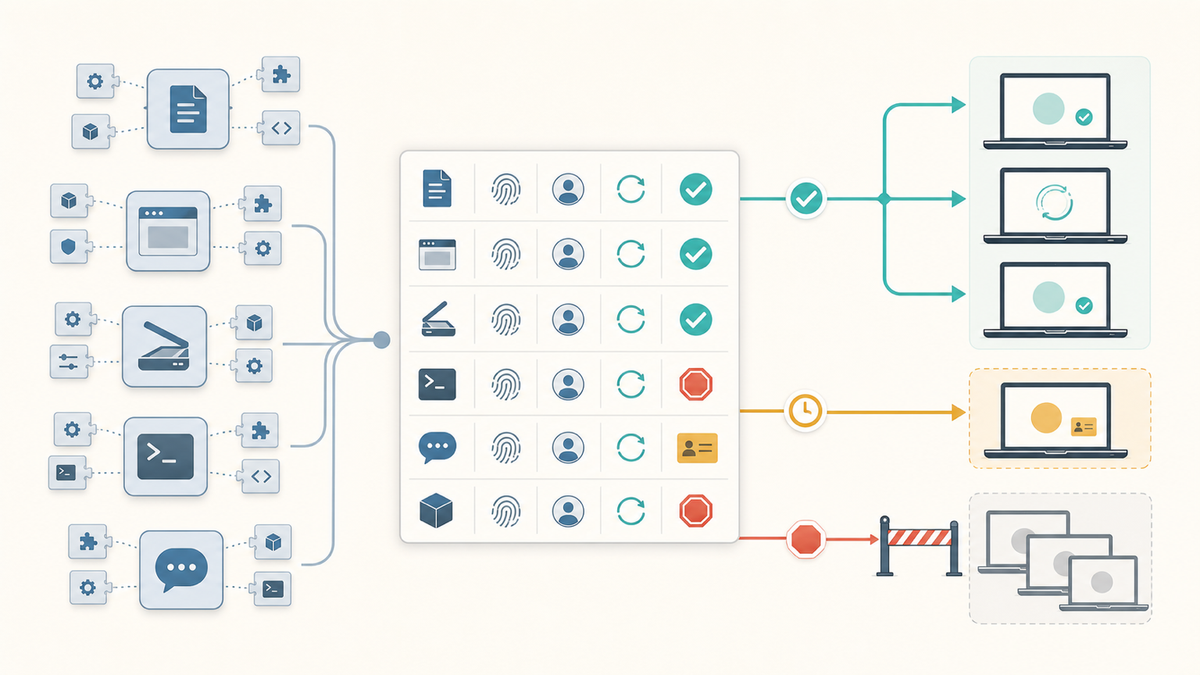
Apple is adding native controls for deciding which apps can launch on supervised iPhone, iPad, Apple TV, and Apple Vision Pro devices, and which binaries can run on supervised Macs.
The new controls arrive in OS 27 through the declarative com.apple.configuration.app.settings configuration. On iOS, iPadOS, tvOS, and visionOS, the rules work at the app level by bundle ID. On macOS, they work at the binary level through Apple's Endpoint Security framework. That means a Mac rule can apply to an application, a helper inside its app bundle, a command-line tool, or another executable.
Apple presented the feature during its WWDC26 device-management session and documents the current behavior in Apple Platform Deployment. The feature is still prerelease. The names, matching behavior, and schema may change before the final OS 27 releases.
What Apple added
The four controls live under the Allowed dictionary in the new app settings declaration:
| Platform | Key | Match | Result |
|---|---|---|---|
| iOS, iPadOS, tvOS, visionOS | AllowedApps |
Bundle ID | Only listed apps can launch. |
| iOS, iPadOS, tvOS, visionOS | DeniedApps |
Bundle ID | Listed apps cannot launch. Other apps remain available. |
| macOS | AllowedBinaries |
Code-signing and path properties | Only matching binaries can run. |
| macOS | DeniedBinaries |
Code-signing and path properties | Matching binaries cannot run. Other binaries remain available. |
The declaration requires supervised enrollment. The binary controls are system-scoped on macOS.
Apple keeps critical operating-system binaries running
Apple built a safety floor into the feature. Its app-management guide says most binaries included in the signed and sealed operating system are always permitted. The AppSettings schema separately says the device always runs system-critical processes. An administrator therefore cannot use an allow or deny rule to stop the protected components macOS needs to keep operating.
I would describe the protection using Apple's wording rather than treating it as a blanket folder exception. Apple does not say that every Apple-signed binary or every executable under /System is exempt. It says most binaries included in the signed and sealed operating system are always permitted. Apple's Signed System Volume security documentation explains how macOS cryptographically protects the system content that ships as part of the operating system.
A deny rule wins if a binary that is not covered by that operating-system protection matches both lists. When macOS blocks a launch, the user sees an alert. Apple's WWDC session also says macOS shuts down processes associated with a denied binary.
I would use a deny list when most software is permitted and I need to stop a known app or executable. I would use an allow list when the Mac has a narrow job and should run only software the organization approved.
A deny list is usually the easier starting point for a general-purpose staff Mac. A strict allow list makes more sense for a lab, kiosk, testing device, shared workstation, or regulated workflow with predictable software.
Two places I could use this
A school might have a cart of supervised iPads used only for student assessments. An allow list could limit those devices to the assessment app and any other apps required during testing. The declaration could be assigned to that device group for the testing period, then removed when the iPads return to normal classroom use.
On general-purpose staff Macs, I would be more likely to start with a deny rule. If an unauthorized remote-access tool appears in inventory, a rule can block that specific app or binary while leaving the rest of the user's software alone. Inventory and reporting would still be needed to find the affected Macs and confirm the process stopped running.
How macOS identifies a binary
Apple's AppSettings schema supports five matching fields:
| Field | What it identifies | Maintenance tradeoff |
|---|---|---|
CDHash |
One exact signed binary | Precise, but an update normally produces a different hash. |
TeamID |
The developer team that signed the binary | Survives updates, but may trust more than one product from that developer. |
SigningID |
The binary's code-signing identifier | Narrows a publisher rule to one app or component. |
PathPrefix |
The beginning of the binary's file-system path | Limits where a matching binary may run from. |
SigningState |
Apple, App Store, Developer ID, Enterprise, TestFlight, or all signing states | Lets the rule require a particular signing source. |
For AllowedBinaries, Apple requires either CDHash or TeamID. You can add SigningID, PathPrefix, and SigningState to narrow the match. For DeniedBinaries, you can start with CDHash, TeamID, or SigningID, then optionally add the path and signing state.
Every field in one rule must match. A rule containing a Team ID, signing ID, and path prefix applies only when all three match the binary.
Apple's open-source schema tells administrators to use codesign to collect these values. For example:
/usr/bin/codesign -dvvv "/Applications/Google Chrome.app/Contents/MacOS/Google Chrome" 2>&1 \
  | /usr/bin/grep -E '^(Identifier|TeamIdentifier|CDHash)='
On my Mac, the useful stable-looking values were:
Identifier=com.google.Chrome
TeamIdentifier=EQHXZ8M8AV
The command also returns a CD hash. I would not copy any of these values from a blog post into production. Run the command against the exact app and version you intend to approve, save the output with the application record, and repeat it after an update.
Example: allow a managed software catalog plus one local app
Suppose a reception Mac receives its normal software through device management, but it also needs one locally installed visitor-registration app. A starting declaration could automatically allow managed apps and add a specific rule for that local app:
{
  "Type": "com.apple.configuration.app.settings",
  "Identifier": "86A1B6E3-56C8-4A02-83D4-73D3D6757B44",
  "ServerToken": "REPLACE-WITH-YOUR-SERVER-TOKEN",
  "Payload": {
    "Allowed": {
      "AlwaysAllowManagedApps": true,
      "AllowedBinaries": [
        {
          "TeamID": "ABCDE12345",
          "SigningID": "com.example.visitor-registration",
          "PathPrefix": "/Applications/Visitor Registration.app/",
          "SigningState": "DeveloperID"
        }
      ]
    }
  }
}
The identifiers in that example are illustrative. Replace them with values taken from the real binary.
AlwaysAllowManagedApps deserves more attention than its name suggests. Apple's managed-app documentation says it applies to apps deployed through com.apple.configuration.app.managed or through the older InstallApplication command with InstallAsManaged set to TRUE. A package, script, or file copy that successfully places an app in /Applications does not automatically prove that macOS considers it a managed app for this feature.
That distinction matters for endpoint-management products. Ask whether the exact deployment method marks the app as managed and what status the service provides to prove it.
Example: allow one app bundle without trusting the publisher everywhere
A Team ID by itself can match multiple products and helper tools signed by the same developer. Adding a path prefix can limit that trust to one app bundle.
Using the Chrome values above, a rule shaped like this would match Google-signed binaries inside the Chrome app bundle:
{
  "TeamID": "EQHXZ8M8AV",
  "PathPrefix": "/Applications/Google Chrome.app/",
  "SigningState": "DeveloperID"
}
That is broader than approving only the main Chrome executable, but narrower than trusting every binary signed by Google's Team ID regardless of location.
If you add SigningID: "com.google.Chrome", the rule becomes more specific. It may no longer match helper binaries with their own signing identifiers. That can be exactly what you want, or it can produce an app that opens and then fails when a renderer, updater, crash handler, or other embedded component starts.
This is why Apple's use of the word binary matters. You are not simply approving an icon in /Applications.
Example: block one known app without restricting everything else
A deny list is simpler when users can run normal software but one application is not permitted. This fragment blocks a fictional chat client only when its Team ID, signing ID, path, and Developer ID state all match:
{
  "Payload": {
    "Allowed": {
      "DeniedBinaries": [
        {
          "TeamID": "FGHIJ67890",
          "SigningID": "com.example.chat-client",
          "PathPrefix": "/Applications/Example Chat.app/",
          "SigningState": "DeveloperID"
        }
      ]
    }
  }
}
Other binaries remain available because there is no AllowedBinaries list in this example.
You can also combine broad managed-app approval with a specific denial. Apple says a denial wins when a binary appears in both the effective allow and deny lists. That gives an organization a way to allow managed apps by default while blocking one managed app that should not run on a particular device group.
Multiple declarations do not simply overwrite each other
Apple allows multiple app settings declarations to combine. Its open-source OS 27 schema marks the important fields this way:
AllowedBinariesuses set intersection.DeniedBinariesuses set union.AlwaysAllowManagedAppsuses boolean OR.
Allow lists narrow the effective set. Deny lists accumulate. If one team allows Chrome and Zoom while another declaration allows only Chrome, the effective policy is the narrower list. If any applicable declaration denies a matching binary, that denial joins the effective deny set.
I would report every app settings declaration assigned to the pilot Macs. Otherwise you can spend hours debugging the newest rule while an older declaration is producing the effective result.
Test the complete workflow
A Mac app can include helper executables, login items, launch agents, launch daemons, updaters, extensions, command-line tools, and processes embedded inside the app bundle. Apple documents many of these separately in its guide to login items and background tasks.
For each app in a pilot, I would test:
- Installation through the intended deployment method.
- First launch, sign-in, and the user's normal task.
- Printing, scanning, screen sharing, VPN, browser extensions, plug-ins, and hardware integrations the role needs.
- Background helpers and login items.
- A normal app update, followed by relaunch and reboot.
- Removal and reassignment if that is part of the support workflow.
- The blocked-binary alert and the help-desk response.
- Policy removal or correction through a recovery path that does not depend on the blocked app.
Interpreters need extra testing. Shell scripts, Python, Java, package managers, plug-ins, and locally built tools do not fit neatly into one app record. Allowing an interpreter may permit code that was not individually approved. Blocking it can make a developer, lab, or technical classroom Mac unusable. Apple's current documentation explains binary matching, but it does not answer every interpreted-workload scenario for you.
Use a real test Mac and the actual workload. Do not infer the result from the schema.
Where FileWave fits
I would use FileWave for the inventory, deployment, pilot targeting, reporting, and recovery work around this feature.
An Inventory Report can select a bounded role and verify installed applications, versions, architecture, assigned user or location, and last check-in. Filesets keep the tested installation path and update method visible. Custom Fields can record the pilot result, exception owner, review date, and whether a device is ready for enforcement.
The current FileWave 16.4 release page documents macOS 27 beta enrollment for testing, DDM declaration import and export, and richer DDM status. Check the current release notes and support guidance for this specific app.settings configuration before using it in production. The fact that FileWave can deploy an app does not by itself prove that the app qualifies for AlwaysAllowManagedApps or that every embedded binary will match the intended rule.
I would start with a deny rule or one tightly bounded allow-list role, then capture what actually happened on the Mac. The useful evidence is not that the declaration was assigned. It is that the required apps, helpers, updates, and recovery path worked while an intentionally blocked binary did not.
Sources
- Apple: WWDC26 app management updates
- Apple Developer: What's new in managing Apple devices
- Apple Developer: AppSettings
- Apple Developer: AppSettings allowed object
- Apple Developer: Binary identifier object
- Apple open-source device-management schema for OS 27
- Apple: Distribute managed apps to Apple devices
- Apple: Manage login items and background tasks on Mac
- Apple Platform Security: Signed system volume security
- FileWave 16.4.0