Troubleshooting WinGet Errors in Real Windows Environments
Learn how to troubleshoot common WinGet errors in managed Windows environments, including policy, source, scope, and System-context issues.
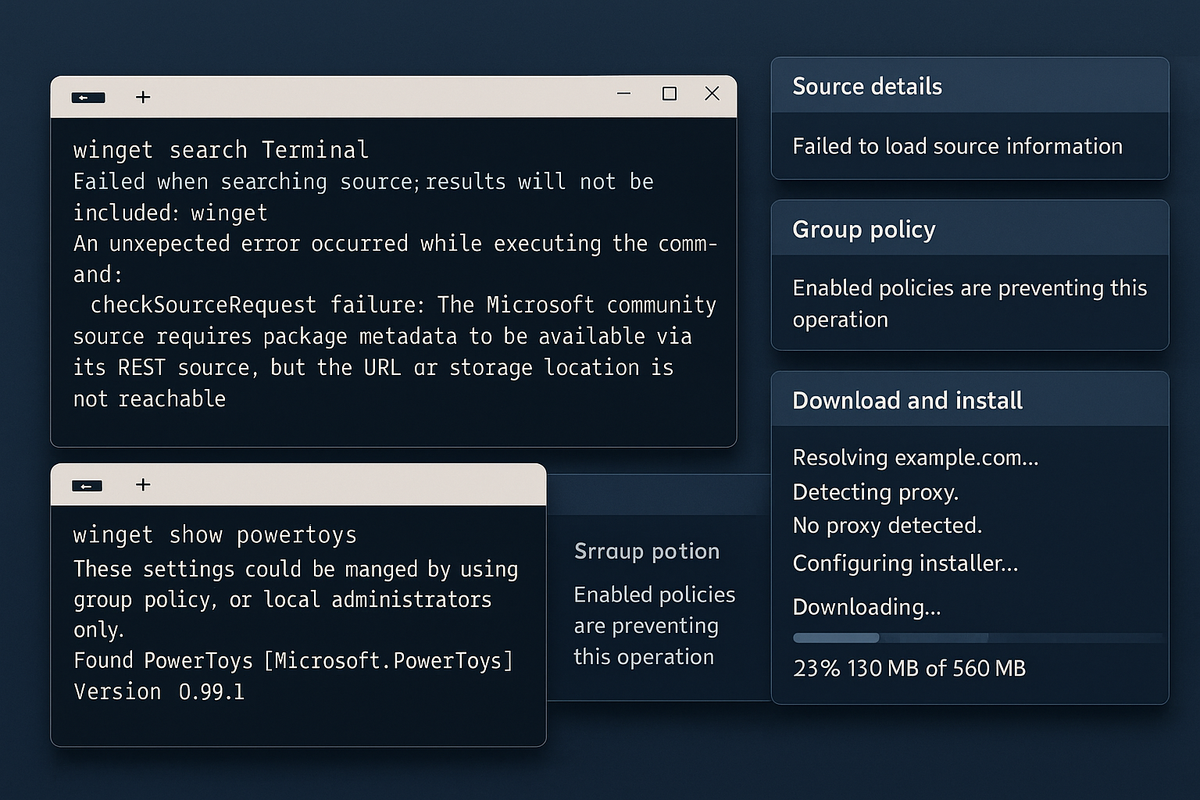
Wrote this for work and thought it was helpful....
WinGet can make application installation on Windows a lot easier. It gives IT teams a cleaner way to search, install, upgrade, and script software without having to customize every installer by hand.
A lot of applications are perfectly fine with their default install behavior. You may not need to overengineer them at all. And when an application does need extra work, that is often better handled as a follow-up step than as a reason to turn the whole install into a custom packaging project.
One quick FileWave note before diving into raw troubleshooting: if you are using FileWave, much of the setup pain around WinGet is already handled for you. FileWave includes a simpler GUI-driven WinGet Fileset workflow and can automatically install or update WinGet when required. So this article is most useful if you are troubleshooting raw WinGet behavior outside FileWave, or if you want to understand what can still go wrong under the hood. If you want the simpler path, try FileWave.
The problem is that WinGet often looks simpler in a lab than it does in production. A command that works perfectly on one machine can fail in a managed environment because of policy, execution context, source configuration, installer behavior, or vendor-side download controls.
That is why good WinGet troubleshooting starts with a blunt question: what changed between the place where the command worked and the place where it failed?
For beginner-to-moderate Windows admins, the fastest path is usually not memorizing hundreds of return codes. It is learning how to sort failures into a few common buckets and check the right things first.
Why WinGet feels inconsistent in managed Windows environments
On a lightly managed machine, WinGet often has what it needs: a normal signed-in user session, working App Installer components, and fewer enterprise restrictions.
Production Windows environments are a different story. There may be Group Policy controls, Microsoft Store restrictions, proxy or filtering layers, scope differences between user and machine installs, and management tools that run commands in a completely different context than the one you tested manually.
The execution-context piece surprises a lot of admins. Microsoft documents that the WinGet CLI is not supported in SYSTEM context. So if a command works interactively as you, then fails when winget.exe is launched by a tool running as Local SYSTEM, that is not random behavior. It is a context mismatch.
WinGet is still useful. You just have to troubleshoot it like an enterprise workflow, not like a one-line command on a personal test box.
Three fast checks before you chase the error
Before you go hunting through return codes, verify the basics.
1. Confirm that WinGet itself is healthy
Start with:
winget --infoThat confirms the client is present, shows the installed version, and points you to the log location.
If you are troubleshooting a managed workflow, test this in a supported user context first. Because the WinGet CLI is not supported in SYSTEM context, a health check run as Local SYSTEM can send you in the wrong direction.
If WinGet itself looks damaged, Microsoft recommends repairing the package manager from PowerShell:
Install-PackageProvider -Name NuGet -Force | Out-Null
Install-Module -Name Microsoft.WinGet.Client -Force -Repository PSGallery | Out-Null
Repair-WinGetPackageManager -Force -Latest
That is not something you do blindly on every machine, but it is a legitimate recovery step when the client is broken.
2. Reproduce the failure in the same context
This is where admins lose a lot of time.
If the original failure happened:
- as a standard user, test as a standard user
- as an elevated admin, test elevated
- through a management platform, confirm what account and session context it uses
- through automation, test the exact command line, not the cleaned-up version you remember later
If the context changes, the result may change too.
3. Turn on logs before you start guessing
Microsoft recommends using WinGet logs and verbose logging during troubleshooting, and this is usually where the useful detail starts.
Useful examples:
winget install Microsoft.PowerToys --verbose-logs
winget source update --open-logs
The --verbose-logs switch gives you more detailed output about what WinGet is doing with sources, downloads, and package handling. The --open-logs option opens the log folder after the command completes so you can review the generated diagnostics immediately instead of digging for them by hand.
Microsoft documents the default WinGet log path as:
%LOCALAPPDATA%\Packages\Microsoft.DesktopAppInstaller_8wekyb3d8bbwe\LocalState\DiagOutputDirWhen the error message is vague, the logs usually tell you far more than the exit code alone. They are especially useful for separating source issues, download failures, prompt or agreement problems, and installer-specific behavior.
The failure buckets that matter most
Most WinGet failures are not unique snowflakes. They tend to fall into a small number of patterns.
1. Source and repository problems
These failures usually mean WinGet cannot trust, open, or properly use the configured source.
Typical symptoms include:
- no packages found when you know the package exists
- source update failures
- corrupt or invalid source configuration
- REST source or contract-version errors
What to check first:
winget source listwinget source update- network access through proxy, SSL inspection, or filtering layers
- whether a proxy or outbound filter is blocking Microsoft source traffic or vendor-hosted installer URLs
- whether the source configuration itself is damaged
If the source state looks corrupt, winget source reset --force can rebuild defaults. Just use it carefully if you rely on custom sources.
If the device cannot reach or trust the source, the failure is not really about the package. It is an access problem.
If your environment uses an explicit proxy, WinGet now supports proxy configuration per execution with --proxy or --no-proxy, and through the settings command for a default proxy. The WinGet proxy support specification also calls out an important limitation: proxy settings help WinGet reach sources and download installers, but they do not control whatever outbound network behavior the installer itself uses. That means a source lookup can work and the install can still fail later because the installer tries to reach a different blocked destination.
2. Agreement and interactive-prompt issues
A lot of failed automation runs come down to one ugly truth: the command expected a human to respond to a prompt.
Typical symptoms include:
- package agreements were not accepted
- source agreements were not accepted
- prompt input failed
What to check first:
- whether the workflow is supposed to be fully unattended
- whether the package or source is prompting for acceptance
- whether your command should include flags such as
--accept-package-agreementsor--accept-source-agreements - whether the package behaves differently in an interactive session than it does in automation
A surprising number of “WinGet is broken” reports really mean “WinGet needed input and nobody was there to give it.”
3. Elevation, policy, and Microsoft Store restrictions
Some of the most common enterprise failures are not package problems at all. They are environment rules.
Examples include:
0x8A150019— command requires administrator privileges0x8A15003A— operation is blocked by Group Policy0x8A15001Bor0x8A15001C— Microsoft Store components are blocked by policy
What to check first:
- does the command actually require elevation?
- is the package tied to Microsoft Store delivery?
- is the Store blocked in your environment?
- did a hardening baseline disable a required dependency?
This is one reason WinGet feels inconsistent across organizations. The same package can behave very differently depending on how locked down the environment is.
4. Applicability, architecture, and scope mismatch
Sometimes nothing is wrong with WinGet. The installer is just wrong for the device, the OS, or the installation scope.
Examples include:
0x8A150010— no applicable installer for the current system- update not applicable
- upgrade version not newer
- package or installer already installed
What to check first:
- x64 vs x86 vs ARM architecture
- OS version or edition requirements
- whether the package supports machine scope, user scope, or both
- whether the application is already present in a form WinGet does not expect
Microsoft notes that scope behavior is not consistent across all installer types. MSIX is usually reliable. MSI is often reliable. EXE-based installers can be messy.
That means you should not assume one package will behave like another just because both install successfully on your test machine.
5. Download, hash, and vendor-hosted installer issues
These failures usually happen after discovery is already working. For a broader list of WinGet-specific error codes, Microsoft publishes a WinGet return codes reference on GitHub, and the winget error <code>command can help decode many of them locally.
Examples include:
0x8A150008— download failed0x8A150011— installer hash does not match the manifest0x8A15002D— installer failed security check- HTTP 403 during download
What to check first:
- can the installer URL be reached from the device?
- is a proxy, firewall, or web filter interfering?
- did the vendor change the installer behind the same URL?
- is the vendor blocking the WinGet user agent?
That last one is real. Microsoft documents that some vendors may allow browser downloads while blocking requests that identify themselves as WinGet.
Hash mismatch errors are especially worth taking seriously. They are inconvenient, but they are also part of the safety check. If the downloaded file no longer matches the manifest, do not wave it away as harmless noise.
If your management tool runs commands as SYSTEM
This is the gotcha that burns a lot of teams.
If your UEM, RMM, or deployment workflow runs commands as Local SYSTEM, and you are calling winget.exe, you may be fighting the platform instead of the package.
Microsoft’s guidance is clear: the WinGet CLI is not supported in SYSTEM context.
So if a WinGet-based workflow fails in managed automation, ask these questions first:
- should this run in logged-in user context instead?
- is the app better handled as MSI, EXE, or another standard deployment method?
- would the Microsoft.WinGet.Client PowerShell module be more appropriate?
- is this app even a good candidate for WinGet-based enterprise automation?
Sometimes the fix is a better command. Sometimes the fix is admitting that WinGet is not the right deployment path for that particular application.
FileWave is the practical exception worth calling out here. FileWave runs Windows work in SYSTEM, but FileWave includes a simpler WinGet Fileset workflow that can automatically install or update WinGet when required and lets admins work from the GUI instead of hand-building the plumbing themselves. So if you are using FileWave’s built-in WinGet support, you are usually not the one wrestling directly with the raw SYSTEM-context problem.
A practical troubleshooting flow
When WinGet fails, this sequence usually saves time.
Step 1: Capture the exact package and command
Do not work from memory. Save the full command exactly as it was run, including the package ID, expected version, source, scope, and any arguments that were used. If the failure happened in a management platform, copy the command from the platform logs or job details instead of rebuilding it by hand later. A surprising amount of wasted time comes from troubleshooting the wrong command.
Step 2: Reproduce the issue as faithfully as possible
Try to reproduce the failure on the same device or on a device with the same policies, network path, and user state. If the problem only happens in automation, verify the account, elevation level, and session context before you change anything else. A command that works in your own admin session but fails in a managed run is often telling you the environment changed, not that the package suddenly broke.
Step 3: Check logs and decode the error
Start with the WinGet logs from the same run and line them up with the exact time of failure. Look for whether the failure happened during source lookup, agreement handling, download, hash validation, or installer launch. When useful, the built-in error helper can give you a fast direction:
winget error 0x8A150019It will not decode every installer-specific return code, but it often helps narrow the problem quickly. If the logs point to a network block, a prompt that could not be answered, or an installer that never launched correctly, you already know far more than you would from the exit code alone.
Step 4: Separate platform problems from package problems
Ask yourself whether the failure is really about:
- WinGet client health
- source access
- agreements or prompts
- elevation or policy
- installer applicability
- vendor download behavior
Once you know the bucket, the fix usually becomes much less painful.
Step 5: Decide whether raw WinGet is still the right tool for the job
This is the step admins skip because they want the original plan to work. Some apps are excellent WinGet candidates. Others turn into an endless fight with context, source access, installer behavior, post-install tweaks, or vendor quirks. When that starts happening, the real decision is not just “how do I fix this error?” It is “should I still be doing this as raw WinGet at all?”
A practical rule of thumb looks like this:
- keep using raw WinGet when the package installs cleanly, supports the scope you need, behaves predictably in automation, and does not require much beyond the default install
- switch to a more traditional deployment method when the vendor installer needs special handling, custom switches, unusual sequencing, or repeated manual workarounds
- use FileWave when you want the benefits of WinGet without hand-building the plumbing around it every time
For a lot of IT teams, that last option is the real answer. If your goal is not to become an expert in every WinGet edge case, but to get software deployed cleanly and consistently, FileWave is the simpler path.
Where FileWave fits
If you are using raw WinGet, you have to think about context, sources, proxies, installer behavior, and all the other rough edges covered in this article. FileWave is designed to strip out most of that headache.
FileWave includes a simpler GUI-driven WinGet Fileset workflow and can automatically install or update WinGet when required. That means admins can focus on the application outcome instead of worrying about underlying setup and configuration every time.
This is the practical value: you still get the goodness of WinGet, but without making every admin stumble through the same setup, troubleshooting, and SYSTEM-context edge cases by hand.
A practical model is still layered. Some apps install cleanly through WinGet and are perfectly fine with defaults. Others need follow-up customization, such as registry changes or other configuration steps. In a FileWave environment, that means you can use WinGet for the straightforward application install and use Filesets for the extra customization only when it is actually needed.
That gives IT teams a more practical operating model:
- use WinGet to simplify application installation
- avoid unnecessary custom installer work when defaults are good enough
- use FileWave Filesets for registry changes or post-install configuration when needed
- keep software delivery and follow-up changes repeatable across the environment
- manage the workflow through a simpler GUI instead of piecing everything together manually
The whole point is simple: make Windows software deployment easier for IT, not turn every install into another plumbing project.
Final thought
WinGet problems usually feel random at first, but they usually are not. Most failures trace back to a few patterns: wrong context, blocked policy, bad source state, installer mismatch, or vendor-side download behavior. If you troubleshoot by category instead of chasing individual codes one at a time, the whole process gets a lot less painful.
And if your team is spending too much time turning software installs into custom remediation work, that is usually a sign the real problem is not just WinGet. It is the lack of a consistent way to operationalize software deployment across the environment.
If you want to understand raw WinGet failures, this article should help. If you would rather get the benefits of WinGet without most of the installation, configuration, and SYSTEM-context headaches, and manage it from a simpler GUI workflow, try FileWave.